Getting your business verified with Meta is one of those tasks that sounds simple until you actually sit down to do it. Between scattered instructions, outdated screenshots, and Meta’s habit of quietly changing its own systems, most business owners end up confused before they even upload a single document. This guide walks through what Meta Business Verification actually is, why it matters, and how to get through it without the usual back-and-forth with rejections.
One thing worth flagging upfront: Business Verification is not the same thing as “Meta Verified,” the paid subscription that gets you a blue badge. People conflate the two constantly. Business Verification confirms that your business information matches a legitimate business identity recognized by Meta. It’s a compliance and trust layer, not a visibility feature. Keeping that distinction clear will save you a lot of confusion later in this article.
1. What Business Verification Actually Means
Business Verification is Meta’s process for confirming that a Business Portfolio (formerly called Business Manager) is connected to a legitimate business identity rather than inaccurate or unauthorized information. Meta runs this check to keep its advertising and business ecosystem free of impersonation, fraud, and policy abuse.
It sits inside your Business Portfolio and is distinct from two other things people often mix it up with:
- Personal account verification, which confirms an individual’s identity, not a company’s.
- Domain Verification, which proves you control a specific website useful for things like managing how links from your domain appear across Meta apps, but unrelated to confirming your legal business identity.
Business Verification, meanwhile, is the layer that unlocks higher-trust features across Meta’s business tools.
2. Why It Matters
Meta doesn’t ask every business to verify, but for those who need it, skipping it creates real limitations. Verification confirms your legal identity to Meta, which builds credibility and reduces the odds of sudden account restrictions. It can strengthen your business identity signals and improve trust when managing business assets such as Pages, ad accounts, and catalogs.
Beyond security, verification is often a hard requirement rather than an optional nicety. Certain WhatsApp Business Platform features, advanced developer permissions, and other Meta business capabilities may require verification depending on your account and use case. If your business plans to scale advertising or messaging operations, this step may become necessary as your business grows and you access more advanced Meta tools and services.
3. Who Actually Needs to Go Through It
Not every business needs to verify immediately. Verification is generally required when you’re trying to access specific tools or APIs that demand it, or when Meta directly asks you to verify. Common cases include:
- Businesses running larger Facebook and Instagram ad campaigns
- Agencies managing multiple clients’ Pages and ad accounts
- Companies using the WhatsApp Business Platform for messaging at scale
- Developers building applications or services using Meta’s business tools and platforms
- Organizations that need elevated access to business tools
It’s worth noting that heavy advertisers can also get pulled into a separate, system-triggered check called Advertiser Verification, which confirms the identity of whoever is actually funding the ad spend. This kicks in automatically once an ad account crosses certain spend thresholds, or for regulated industries like finance, healthcare, or political advertising. It runs independently of Business Verification completing one doesn’t excuse you from the other if Meta’s systems flag your account for it.
4. What You Need Before Starting
4.1 Portfolio setup
You’ll need an active Business Portfolio with admin-level access, along with your core business details already filled in.
4.2 Business information
Meta may ask for business details such as your legal business name, registered address, phone number, website, and business contact information. Using official details that match your company records can help with verification, but requirements may vary depending on the business and verification flow.
4.3 Supporting documents
Depending on your region, Meta may ask for a certificate of incorporation, business license, tax or VAT registration, and proof of your registered address. If Meta’s automated checks can confirm your business through public records, you may not need to upload anything, documents are mostly needed when automatic matching fails.
5. Where to Find the Verification Settings
Inside Meta Business Suite, Business Verification is usually available through Business Settings → Security Center → Business Verification. The exact menu names may vary slightly depending on your account type and Meta interface updates. The exact menu names may vary slightly depending on your account type and Meta interface updates. From there, you can check your current status or begin the process if you haven’t already.
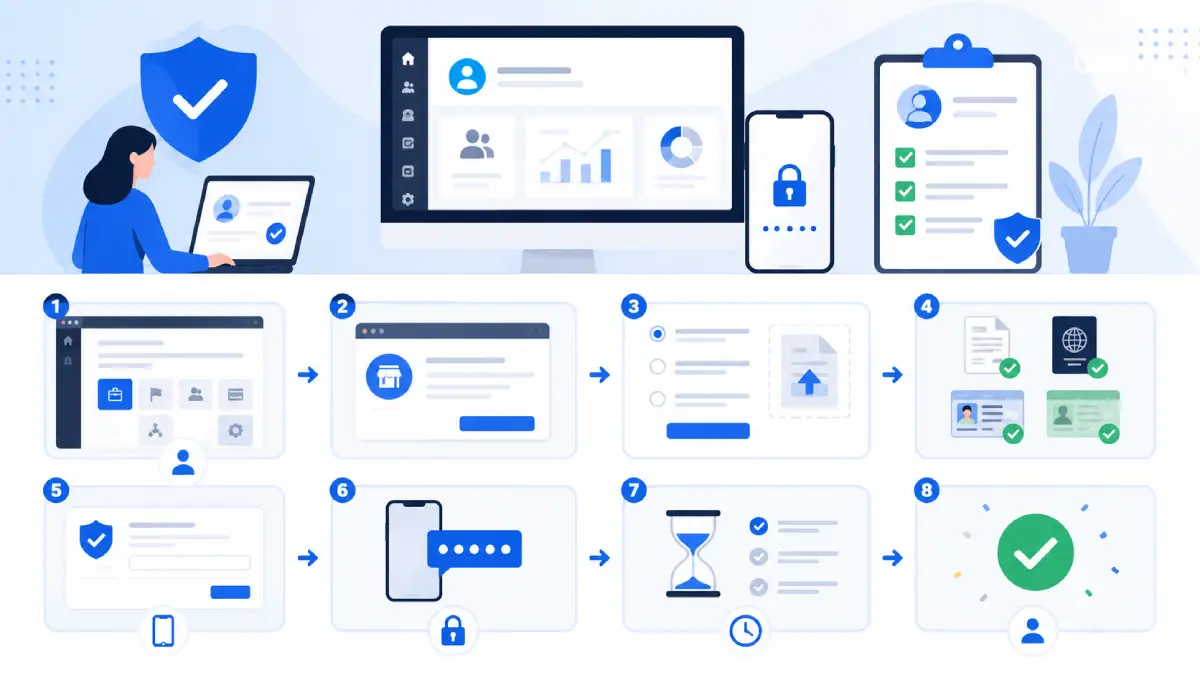
6. Walking Through the Verification Steps
Step 1: Start the process
Open the verification section and review what’s required before clicking to begin.
Step 2: Enter business details
Add your legal name, address, phone number, website, and select the correct business category.
Step 3: Confirm the information
Meta often auto-matches your details against public business records. Review this carefully, accuracy here is the single biggest factor in avoiding delays.
Step 4: Submit documents (if requested)
Upload clear, valid documents that match exactly what you entered in Step 2. Mismatches are one of the most common reasons applications stall.
Step 5: Verify contact details
Confirm available business contact details if Meta requests additional verification through phone, email, or other methods.
Processing times vary depending on business details, document review, region, and Meta’s verification workload. Some businesses may be approved quickly, while others may require additional review.
7. Understanding Your Verification Status
Once submitted, your status will show as one of the following:
- Not Started – you haven’t begun the process yet
- In Progress – Meta is actively reviewing your submission
- Verified – your business has been approved
- Rejected – something in your details or documents didn’t meet requirements
8. Common Reasons Verification Gets Rejected
Most rejections trace back to a handful of recurring issues: a business name that doesn’t exactly match official records, an incorrect or outdated address, blurry or expired documents, a phone number that fails verification, or a website that doesn’t clearly display your legal and commercial name. Missing information is another frequent culprit even a small gap can trigger a rejection rather than a request for clarification.
9. Fixing a Rejected Application
If you’re rejected, Meta typically provides a reason. Start there. Correct whatever was flagged, make sure every detail name, address, documents, website lines up consistently, and resubmit. Reapplying with accurate, matching information can improve the chances of successful verification.
10. What Changes Once You’re Verified
A verified Business Portfolio comes with stronger account security, more control over who manages your Pages and ad accounts, smoother collaboration with agencies or partners, and access to Meta features that remain locked for unverified businesses. Verification can provide stronger business identity signals and improve asset management, but it does not guarantee immunity from ad account restrictions or policy enforcement.
11. Business Verification Compared to Domain Verification
It’s easy to lump these together since both involve proving “ownership” of something, but they solve different problems. Business Verification confirms who legally owns and operates the company it lives in the Security Center and requires business documents. Domain Verification, on the other hand, confirms who controls a specific website; it sits under Brand Safety → Domains and relies on proof of website ownership rather than corporate paperwork. You may need one, both, or neither, depending on what you’re trying to unlock.
12. Tips to Improve Approval Chances
Most rejections happen because of small mismatches rather than real eligibility problems, so keeping everything consistent matters most. Use the exact same business name everywhere on your documents, your website, and in the verification form since even a tiny difference can cause issues. Keep your address written the same way every time instead of switching formats. Upload documents that are clear and easy to read, with nothing cropped, blurry, or edited. Make sure your website clearly shows your business name and what you do, so it matches what you’ve submitted. Following these basics is usually enough to get approved without delays.
13. Conclusion
Business Verification is ultimately Meta’s way of confirming that your business information represents a legitimate business identity. Getting it right the first time comes down to consistency the same legal name, address, and contact details everywhere, backed by documents that clearly match. For businesses that need advanced advertising, messaging, or developer features on Meta’s platforms, this can become an important setup step rather than an optional task.