
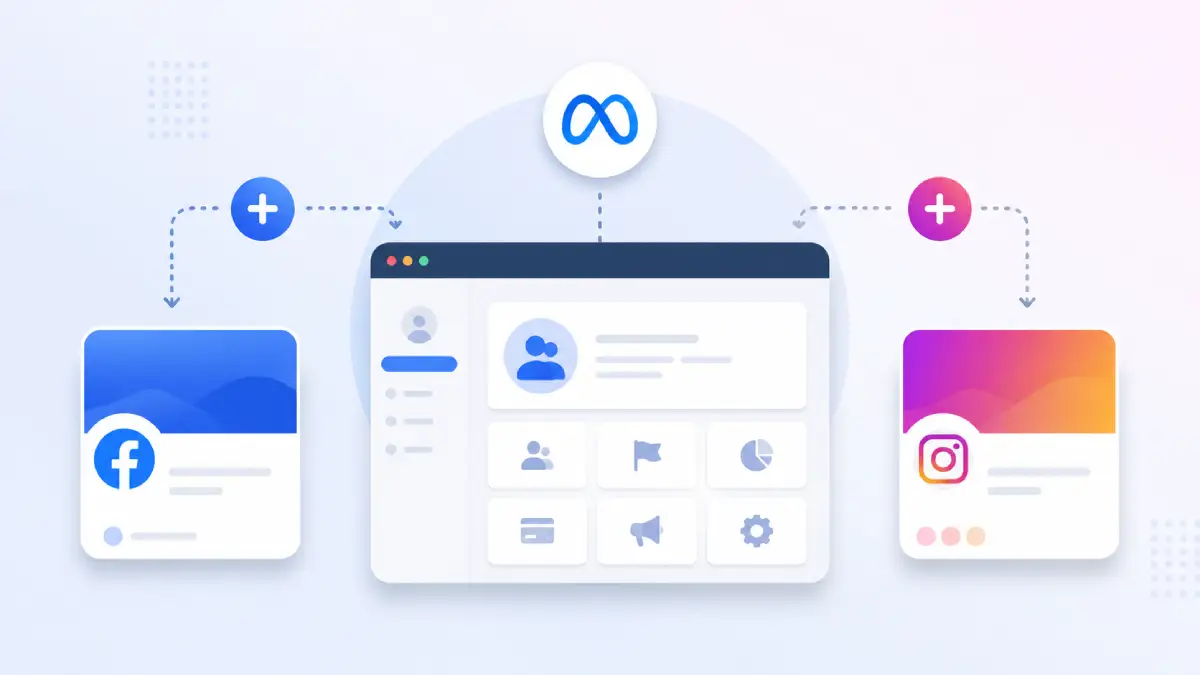
A Meta Business Portfolio can organize your Facebook Page and Instagram professional account as business assets under the same business structure. This makes it easier to manage access, connect business assets to advertising accounts, and use Meta’s business tools without sharing personal login credentials. However, adding the Page and Instagram account to the same Business Portfolio is separate from linking the Instagram account to the Facebook Page. Both relationships can matter when setting up Facebook and Instagram advertising and using cross-platform business features.
Meta previously used the name Business Manager for its business-management system. You may still see “Business Manager” in older tutorials and documentation, while current Meta interfaces commonly use Business Portfolio and Meta Business Suite terminology. Menu names and navigation can change as Meta updates the interface.
1. What You Need Before Starting
Before adding the assets, make sure you have:
- A personal Facebook account that you use to access Meta business tools
- A Meta Business Portfolio
- A Facebook Page that you own or have the required access to
- An Instagram Professional account (Business or Creator) if you want to add the Instagram account as a business asset
- Full Control or the required permissions for the Business Portfolio and relevant assets
Your exact permissions determine whether you can add, claim, connect, or manage an asset. Meta’s current setup also distinguishes between owning an asset and having access to an asset.
2. Why the Facebook Page and Instagram Account Matter Together
A Facebook Page and an Instagram professional account serve different roles, but connecting them can make managing Facebook and Instagram activity easier.
When the professional Instagram account is connected to a Facebook Page, Meta provides features such as:
- Using the connected identities when running Facebook and Instagram ads
- Managing Facebook and Instagram messages through Meta Business Suite
- Sharing content between Facebook and Instagram where supported
- Using additional cross-platform business features
- Managing certain Instagram promotional activities through the connected Page
Meta specifically states that connecting a professional Instagram account to a Facebook Page enables advertising across Facebook and Instagram and provides cross-platform messaging and sharing features.
Important: Adding both assets to the same Business Portfolio does not by itself mean that the Instagram account is connected to the Facebook Page. These are separate relationships.
3. Adding Your Facebook Page to the Business Portfolio
Open Meta Business Suite and go to your Business Portfolio’s Settings. Locate Pages under the relevant business asset section and select Add. Depending on your situation, Meta may provide options to:
- Add an existing Facebook Page that you own
- Request access to a Page owned by another business
- Create a new Facebook Page
If you already own the Page and have the required control, you can add it to the Business Portfolio. If another Business Portfolio owns the Page, you generally cannot simply claim it as your own. You may need access from the existing owner or need to resolve the existing ownership arrangement first. Meta currently provides separate workflows for adding a Page and requesting access to a Page.
4. Adding Your Instagram Professional Account to the Business Portfolio
To add an Instagram account as a business asset, it must be an Instagram Professional account, such as a Business or Creator account.
In Meta Business Suite, open Settings, go to Accounts, select Instagram accounts, and choose Add. Sign in to the Instagram account when prompted and approve the requested permissions.
The Instagram account must meet Meta’s eligibility requirements and may not already be owned by another Business Portfolio. You also need the appropriate level of control over the Business Portfolio to add and manage the Instagram account.
5. Connecting the Instagram Account to the Facebook Page
Adding the Facebook Page and Instagram account to the same Business Portfolio does not automatically mean that the two accounts are connected to each other. If you want to use Facebook and Instagram together for features such as cross-platform messaging, sharing, and certain advertising functions, connect the Instagram professional account to the Facebook Page.
You can manage this connection through the Facebook Page’s settings or the available Instagram/Facebook account-connection options. After connecting them, verify that the correct Instagram account appears as connected to the correct Facebook Page.
6. Assigning Team Access
After adding the assets, assign access to the people who need to manage them. Use the Business Portfolio’s People or business-asset access settings to give team members the permissions they need. Access can be assigned separately to different business assets, so someone managing content does not necessarily need access to advertising or other business assets. Give people only the level of access required for their responsibilities, and remove access when they no longer work on the business.
7. Confirming Everything is Connected
Before launching campaigns, verify each relationship separately:
- Confirm the Facebook Page appears in the Business Portfolio’s Pages section.
- Confirm the Instagram professional account appears under Instagram accounts.
- Confirm the Instagram account is connected to the intended Facebook Page if you need Page–Instagram features.
- Confirm the relevant people have access to the required assets.
- Open Meta Business Suite and verify that the correct Facebook Page and Instagram account are available for the activities you need to manage.
This separate check helps identify whether a problem is caused by asset ownership, permissions, or the Page–Instagram connection.
8. What You Can Do With Connected Facebook and Instagram Assets
When the Facebook Page and Instagram professional account are properly connected and the required advertising assets are available, you can use Meta’s tools to:
- Create campaigns that can deliver across Facebook and Instagram when the campaign setup supports those placements
- Use the appropriate Facebook Page and Instagram identity for advertising
- Manage Facebook and Instagram messages through Meta Business Suite
- Share or cross-post supported content between the two platforms
- Manage business activity across both platforms from Meta’s business tools
- Review performance across Facebook and Instagram within Meta’s reporting tools where supported
The exact features available depend on the account type, connected assets, permissions, campaign setup, and Meta’s current product availability.
9. Common Problems and Fixes
- Facebook Page cannot be added: The Page may already be owned by another Business Portfolio, or you may not have the required control over it. Check the Page’s current ownership and access before attempting to add it again.
- Instagram account cannot be added: Check that the Instagram account is a Professional account, that you have the required Business Portfolio permissions, and that the account is not already owned by another Business Portfolio.
- Instagram account is added but not connected to the Page: Adding the Instagram account to the Business Portfolio and connecting it to a Facebook Page are separate actions. Check the Page–Instagram connection separately.
- Team member cannot manage an asset: The person may have access to the Business Portfolio but not to the specific Page, Instagram account, or other asset. Review the person’s assigned business-asset permissions.
- Client’s Page or Instagram account belongs to another Business Portfolio: Do not attempt to claim an asset that another business legitimately owns. Request the appropriate access or work with the current owner to transfer or reorganize ownership where appropriate.
10. Best Practices Going Forward
- Keep the Facebook Page and Instagram professional account connected when you need their cross-platform features.
- Enable two-factor authentication on the personal Facebook accounts that have important business access.
- Give each person only the business-asset permissions they actually need.
- Review Business Portfolio access regularly, especially after employees, freelancers, or agencies finish working with the business.
- Keep ownership of important business assets with the appropriate business rather than relying on an individual employee or agency.
- Check the Page, Instagram account, ad account, and other advertising assets before launching campaigns.
- Avoid sharing personal Facebook or Instagram passwords with employees or agencies; use Meta’s business-asset permissions instead.
11. Key Takeaways
The important distinction is that there are three separate relationships to understand:
- Facebook Page → Business Portfolio: The Page becomes a business asset that can be organized and managed through the portfolio.
- Instagram Professional account → Business Portfolio: The Instagram account becomes a business asset that can be managed through the portfolio.
- Instagram Professional account ↔ Facebook Page: This is a separate connection that enables additional Facebook–Instagram features, including cross-platform messaging, sharing, and certain advertising capabilities.
Before launching Meta ads, verify all three relationships and make sure the people managing them have the appropriate permissions.