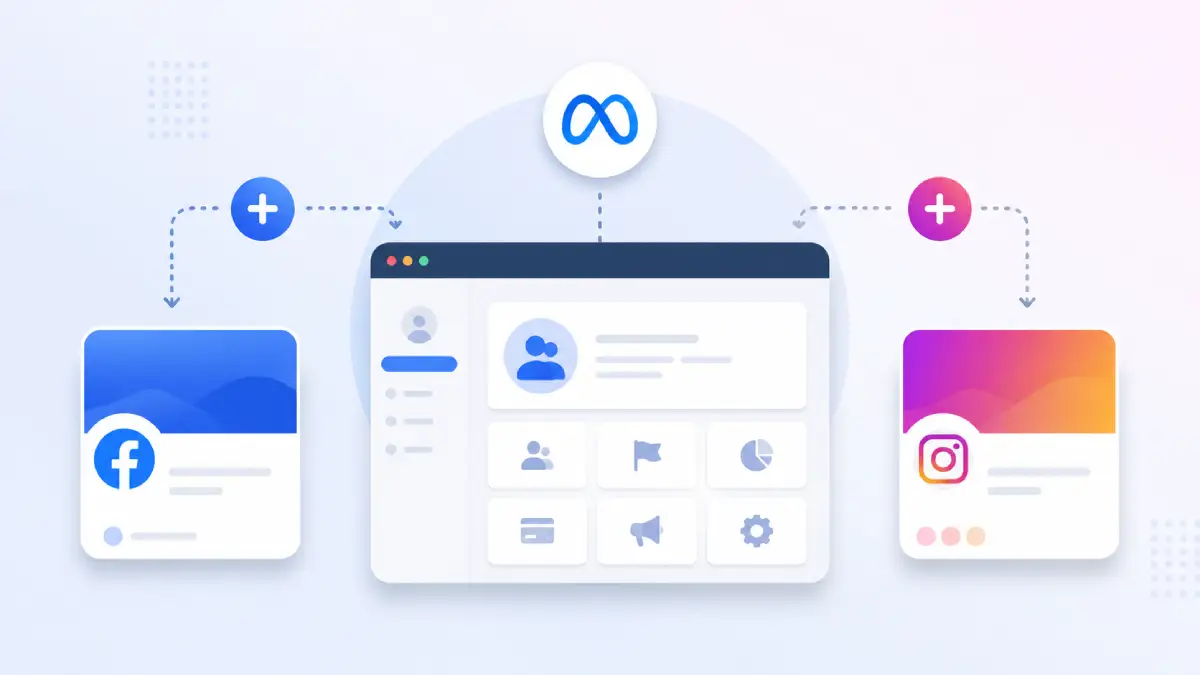
Running ads or managing content across Facebook and Instagram becomes much easier when your Facebook Page and Instagram Professional account are added to the same Meta Business Portfolio. Instead of juggling separate logins or handing over passwords to teammates and agencies, you get one dashboard that controls Pages, ad accounts, and Instagram profiles together. This guide walks through the entire setup, from prerequisites to troubleshooting, so your assets are properly connected before you launch any campaign.
One quick note before starting: Meta renamed “Business Manager” to “Business Portfolio” back in 2024. The tool, URL, and functionality are unchanged only the name is different. If you come across older tutorials or help articles calling it “Business Manager,” they’re describing the same thing you’ll see today as “Business Portfolio.”
1. What You Need Before Starting
- A personal Facebook profile, this is required to create and manage a Meta Business Portfolio and the Facebook Page connected to it.
- An active Meta Business Portfolio
- A Facebook Page
- An Instagram account switched to Business or Creator mode
- Full Control or the required Page access permissions without them, you may not be able to connect or manage the Page.
2. Why These Two Assets Matter Together
A Facebook Page acts as your business identity on Meta, while a Professional Instagram account extends that identity to a visually driven audience. For advertising, both need to be linked because:
- Meta allows your Facebook Page and Instagram Professional account to work together as connected business assets.
- Linking a Facebook Page allows you to use your Instagram account as an advertising identity and unlocks additional advertising and business management features.
- Cross-platform insights only work once the two are joined
3. Adding Your Facebook Page to the Portfolio
Inside Business Settings, go to Accounts, then Pages, and click Add. From there you can:
- Create a brand-new Page
- Add one you already own
- Request shared access to a Page owned by someone else
If the Page is already owned by another Meta Business Portfolio, you’ll need to request access or ask the current business to transfer ownership if appropriate. Once you enter the Page name or URL, review the terms, and confirm, the Page appears under your portfolio’s assets.
4. Connecting Your Instagram Account
If your Instagram is still a personal profile, switch it to Business or Creator first, this isn’t optional, since personal accounts can’t be added to a Business Portfolio. Then:
- Open Business Settings > Accounts > Instagram Accounts
- Click Add
- Log in with the Instagram credentials
- Review and approve the requested permissions to complete the connection.
5. Linking the Page and Instagram Account
Even after both assets sit inside the portfolio, they still need to be linked to each other. This can happen a couple of ways:
- Automatically during setup
- Manually through the Page’s Linked Accounts settings, where you select the Instagram profile to attach
- Through Accounts Center, where supported account connections and sharing preferences can also be managed.
Whichever route you take, check the Page settings afterward to confirm the Instagram account shows as connected.
6. Assigning Team Access
Once both accounts are in place, add teammates or partners through Business Settings > People, then assign each person the appropriate level of access based on their responsibilities, separately for the Page and the Instagram account. This keeps access controlled: revoking someone’s role takes seconds and doesn’t require changing any passwords, which matters if you’re working with freelancers or short-term contractors.
7. Confirming Everything is Connected
Before building any ad campaign:
- Revisit Business Settings and check both the Pages and Instagram Accounts tabs to confirm each asset is listed and active
- Open Meta Business Suite separately and verify you can view Insights and Inbox messages for both platforms in one place
- If either is missing, the linking step likely needs to be redone
8. What You Gain From Linking Both
- Run ads across Facebook and Instagram from a single campaign
- Use either the Page or the Instagram handle as the advertiser identity
- Manage all DMs and comments from one inbox
- Publish content once and have it appear on both platforms
- Pull combined performance data instead of checking two separate dashboards
9. Common Problems and Fixes
- Page won’t add: it’s often already owned by another portfolio the current owner needs to release it, or you’ll need to send an access request
- Instagram won’t connect: check it’s set to Professional mode, since personal accounts are rejected outright
- Missing permissions: usually means you don’t have Full Control or the required Page access permissions.
- Connected account not showing up: sometimes just needs a page refresh or a re-login to sync properly
- Managing many client accounts: Meta may apply business asset limits based on your account history and verification status. If you reach a limit, you may need to request additional access or use separate Business Portfolios.
10. Best Practices Going Forward
- Keep the Page and Instagram account linked at all times rather than disconnecting between campaigns
- Turn on two-factor authentication for the personal profile that owns the portfolio this is the single point of failure if compromised
- Assign roles based on what each person actually needs to do, not broader access by default
- Periodically review who has access, especially after a contractor’s project ends
- Keep your business name, category, and contact details consistent across both platforms to maintain a professional brand and simplify account management.
11. Key Takeaways
- Make sure the prerequisites are sorted before starting
- Add the Page to the portfolio
- Switch Instagram to Professional and connect it
- Confirm the two are actually linked to each other, not just both present in the portfolio
- Assign the right access levels to the right people
- Check everything inside Meta Business Suite before launching campaigns
Setting everything up correctly from the beginning helps you manage your business more efficiently, reduces access issues, and ensures your Facebook Page and Instagram account are ready before you launch your first Meta ad campaign. It’s a one-time setup that pays off every time you launch something new.