
Running ads on Facebook and Instagram without understanding the tool behind them is like driving with your eyes half closed. Meta Ads Manager is the engine room for every business that wants to turn a few dollars into real reach, leads, or sales. This guide walks through what it actually is, how it’s built, and how to use it without falling into the traps that trip up most beginners.
1. What is Meta Ads Manager?
Meta Ads Manager is the official platform for building, running, and tracking ads across Facebook, Instagram, Messenger, and Meta’s Audience Network. It’s where every serious advertiser eventually lands, because it gives full control over targeting, budgets, creative testing, and reporting control you simply don’t get from the “Boost Post” button.
It’s built for anyone managing ad spend with intention: small business owners scaling past their first few sales, marketers running multiple client accounts, or agencies juggling dozens of campaigns at once.
The difference between Ads Manager and Boost Post comes down to control and flexibility. Boost Post is a simplified option designed to quickly promote an existing Facebook or Instagram post with basic audience and budget settings. Ads Manager provides a complete advertising environment where you can choose specific campaign objectives, build detailed audiences, control placements, manage budgets, test different creatives, and analyze performance. While Boost Post can be useful for simple promotion, Ads Manager gives advertisers the tools needed to run structured campaigns focused on goals like awareness, traffic, leads, app promotion, or sales.
2. Prerequisites Before Using Meta Ads Manager
Before opening the dashboard, a few pieces need to be in place:
- A Meta Business Portfolio (previously known as Business Manager), which acts as the central hub for managing business assets, ad accounts, Pages, and user permissions
- An active Meta Ads account linked to that portfolio
- A Facebook Page, since campaigns are run through a Page even when the main goal is Instagram engagement
- An Instagram account, which is optional but recommended if you want ads to appear there
- A valid payment method attached to the ad account
- Correct billing country, currency, and time zone, since these can’t be changed easily later and affect how your budget and reporting are calculated
Getting these right at the start saves a lot of cleanup down the road.
3. How to Access Meta Ads Manager
There are two common entry points. You can open it from within Meta Business Suite, where it sits as a linked tab alongside inbox, content, and insights tools. Or you can go straight to it using its direct web address adsmanager.facebook.com, which is often faster once you’re used to the interface.
Either way, access depends on permissions. You need to be added as an admin, advertiser, or analyst on the ad account through the Business Portfolio without the right role, the dashboard simply won’t load your campaigns.
4. Meta Ads Manager Interface Overview
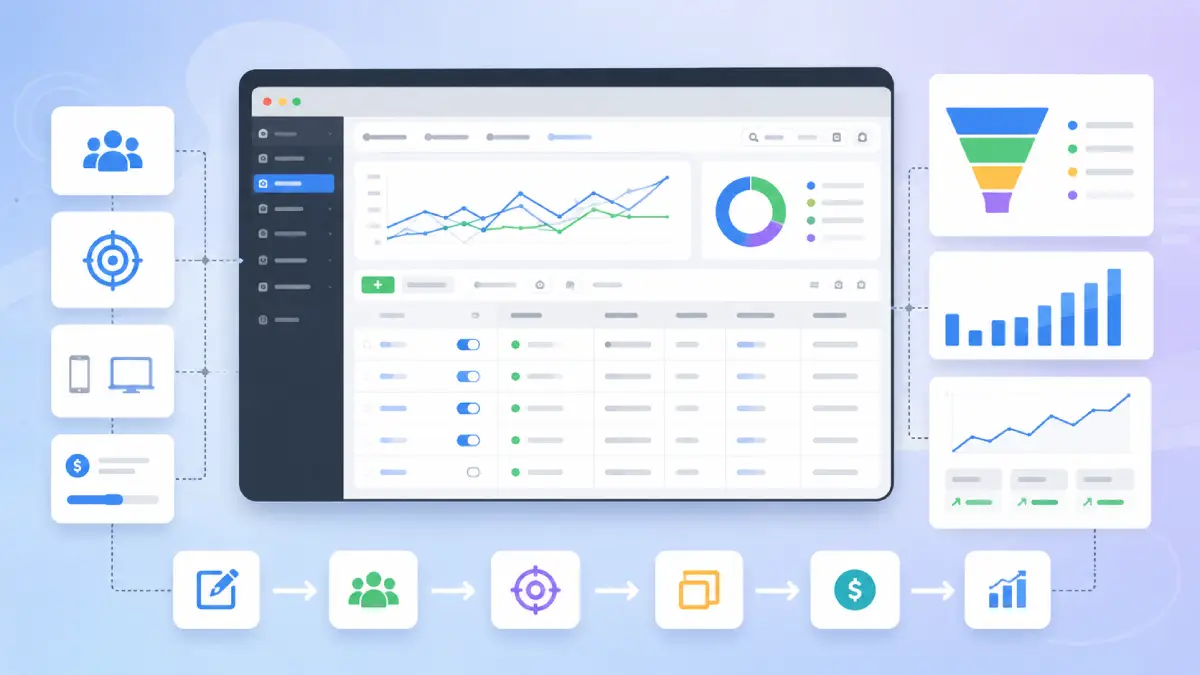
The Meta Ads Manager dashboard can feel overwhelming at first, but its layout follows a clear structure once you understand where each tool and setting is located.
The Meta Ads Manager interface is divided into different areas, with each section designed for a specific management task. The dashboard includes navigation menus, campaign management tabs, reporting tools, and account controls that help advertisers create, monitor, and optimize campaigns efficiently.
You’ll also see a notifications bell for approval or delivery alerts, and a recommendations panel often labeled with an Opportunity Score that flags suggested changes based on your account’s recent performance. These suggestions are worth reviewing but not worth following blindly; they’re generic recommendations, not a guarantee of better results.
Meta Ads Manager Side Menu Explained
Beyond the top toolbar, Ads Manager has its own set of menu items that group different functions together:
- Account Overview: A snapshot of your ad account’s recent activity, spend trends, and any pending alerts or tasks
- Campaigns: The main workspace for building, viewing, and editing your campaigns, ad sets, and ads
- Ads Reporting: Where you can create, customize, and analyze reports to compare campaign performance across different time periods
- Audiences: The section for building and managing custom, lookalike, and saved audiences used across campaigns
- Advertising Settings: General preferences for the ad account, including notification and account-level defaults
- Billing & Payments: Where payment methods, billing history, and invoices are managed
- Events Manager: The section used to set up and monitor tracking tools such as the Meta Pixel and Conversions API. It helps advertisers measure actions people take on websites, apps, and other connected platforms after interacting with ads.
- Settings: Broader account controls, including user roles, permissions, and business asset connections
Each of these sits a click away from the main dashboard, so it’s worth spending a few minutes clicking through them early on most confusion later comes from not knowing which menu holds which setting.
5. Understanding the Campaign Structure
Every campaign in Ads Manager follows a three-level structure: Campaign, Ad Set, and Ad. Understanding this hierarchy is essential because each level controls different parts of your advertising setup.
- The Campaign level sets the objective, what outcome you’re optimizing for, whether that’s traffic, leads, or sales
- The Ad Set level controls audience, budget, schedule, and placements
- The Ad level is where the actual creative lives, the images, videos, and copy people see
These three levels work together to guide how your ads are delivered. The campaign objective tells Meta what result you want to achieve, the ad set defines who should see the ads and how much you want to spend, and the ad creative determines what people actually see. For example, a campaign optimized for sales may focus on finding people more likely to purchase, while a traffic campaign may prioritize people more likely to visit a website.
6. Campaign Management Sections in Meta Ads Manager
The Campaigns tab shows every campaign you’ve created, along with its status (active, paused, or ended) and a quick performance summary.
The Ad Sets tab drills into audience definitions, budget and scheduling details, and where your ads are set to appear feed, stories, reels, or Meta’s wider network.
The Ads tab is where you review the actual creative: images, videos, headlines, and how each ad previews across different placements, plus whether it’s currently delivering or stuck in review.
7. Creating Your First Campaign
You click Create, then select an objective from the available campaign objectives. From there, you configure campaign-level settings, move into the Ad Set stage to define your audience, budget, schedule, and placements, then continue to the Ad stage to upload your creative. Before publishing, review each setting carefully to make sure the objective, audience, budget, and creative match your campaign goal.
8. Managing Campaigns
Once campaigns are running, day-to-day management includes editing details, duplicating a campaign to test variations, and pausing or resuming based on performance. Campaigns can also be archived or deleted when they’re no longer needed. For accounts running many campaigns at once, the search function and bulk action tools make it possible to update several campaigns at the same time instead of clicking into each one individually.
9. Drafts and Publishing
Ads Manager lets you save campaigns, ad sets, and ads as drafts before they go live, which is useful when settings need a second review or approval from someone else. After publishing, ads go through Meta’s review process. Each ad has both an approval status and a delivery status, and these represent different things. Approval confirms whether the ad follows Meta’s advertising policies, while delivery status shows whether the ad is actively reaching people. An approved ad may still have limited delivery because of factors such as budget, audience size, or campaign settings.
10. Understanding Performance Metrics
A handful of metrics form the backbone of campaign analysis:
- Reach: the number of unique people who saw your ad
- Impressions: total times your ad was shown, including repeats
- Frequency: average times a single person saw your ad
- Clicks and CTR (click-through rate): engagement with your ad relative to how often it was shown
- CPC (cost per click) and CPM (cost per thousand impressions): cost efficiency measures
- Results: the number of times your campaign achieved the selected objective, such as purchases, leads, messages, or website visits
- Amount Spent: total budget used
- Conversions: actions taken after seeing the ad, like purchases or sign-ups
- ROAS (return on ad spend): revenue generated relative to what was spent, a starting point for judging profitability
11. Columns, Filters, and Breakdowns
The default metrics view rarely tells the whole story, so Ads Manager lets you customize which columns appear and save those layouts as presets for future use. Filters help narrow down campaigns by status or objective, and sorting makes it easy to spot top or bottom performers quickly. Breakdowns take this further, splitting results by age, gender, placement, device, or time of day useful for spotting where performance is strongest or weakest within a single campaign.
12. Reports and Export
Performance data can be exported for offline analysis or shared with teammates and clients. Saved reports allow you to create a customized reporting view once and return to it later without rebuilding filters, columns, and breakdowns each time. This is especially useful for advertisers who regularly monitor multiple campaigns.
13. Helpful Features in Meta Ads Manager
Several built-in features help advertisers manage campaigns more efficiently. The search function helps locate campaigns quickly, the inspect feature provides additional details about ads and delivery, and delivery insights help explain how campaigns are performing. Duplicate options make it easier to create campaign variations, while export tools help advertisers save and share important data for analysis.
14. Tips for Beginners
- Use clear, consistent naming conventions so campaigns are easy to identify later
- Double-check every setting before publishing, since some can’t be edited afterward
- Check in on campaigns regularly rather than setting them and forgetting them
- Avoid unnecessary edits during the learning phase, since frequent changes can reset performance data
- Look at metrics over a few days before making decisions, rather than reacting to a single day’s numbers
15. Common Mistakes to Avoid
New advertisers often confuse the Campaign, Ad Set, and Ad levels, not realizing which settings live where. Using the wrong ad account is another frequent slip, especially for people managing several businesses. Publishing without a final review of settings, ignoring approval or delivery issues, and fixating on a single metric like clicks while ignoring the bigger picture are all mistakes worth watching for.
16. Frequently Asked Questions
Is Meta Ads Manager free?
Yes, there’s no cost to use the platform itself; you only pay for the ad spend you set.
Do I need a Meta Business Portfolio?
In most cases, yes, since it’s what ties your ad account, Page, and team permissions together.
Can I manage multiple ad accounts?
Yes, through the account selector at the top of the dashboard.
Can I edit a live campaign?
Some elements can be edited while a campaign runs, but core settings like the objective cannot be changed once it’s live.
What’s the difference between Ads Manager and Meta Business Suite?
Business Suite is a broader hub covering inbox, content, and insights, while Ads Manager is dedicated specifically to building and managing ad campaigns.
Where can I manage billing and payment information?
Billing details are found in the account’s payment settings within Ads Manager or the Business Portfolio.
Can I pause a campaign without deleting it?
Yes. You can pause a campaign at any time without removing its settings or historical performance data. Pausing stops ad delivery temporarily, and you can resume the campaign later when needed.