

Claude Connectors let people bring their everyday apps and files directly into a Claude conversation. Instead of copying information back and forth, you can ask Claude to look something up, summarize it, or perform supported actions in the tool where the information already lives. This guide explains what Claude Connectors are, how they work, and what you need to know to use them effectively.
1. What Are Claude Connectors?
Claude Connectors are integrations that link Claude to external apps, services, and data sources. They extend Claude’s capabilities by giving it access to information stored outside the conversation, such as files, project information, calendars, and other business data.
For example, someone preparing for a client meeting could connect their email and document storage, then ask Claude to find relevant messages and files and create a summary. What Claude can retrieve or change depends on the specific connector and the permissions granted to it, since different connectors provide different capabilities.
2. How Claude Connectors Work
Using a connector generally follows a simple process:
- Select a connector from the available list.
- Authenticate with the external service.
- Review the permissions requested by the connector.
- Grant the required permissions.
- Claude receives access to the capabilities provided by that connector.
- Claude can use the connected service when it is relevant to your request.
Claude’s access is limited by the permissions available to your account in the connected service. Connecting a service does not automatically give Claude access to information that your account cannot already access.
3. What Can You Do With Claude Connectors?
Once connected, Claude Connectors can support a range of practical tasks, including:
- Searching for and retrieving information from an external service.
- Opening and reviewing files or documents.
- Pulling information from records stored in a connected application.
- Creating or updating supported content.
- Performing specific actions provided by the connector.
- Bringing external context into a Claude conversation.
For example, you could ask Claude to find a document in a connected storage service and summarize it, or check a connected calendar for meetings related to a particular project.
The exact capabilities depend on the connector. Some primarily provide access to information, while others also allow Claude to perform actions.
4. Claude Connectors Directory
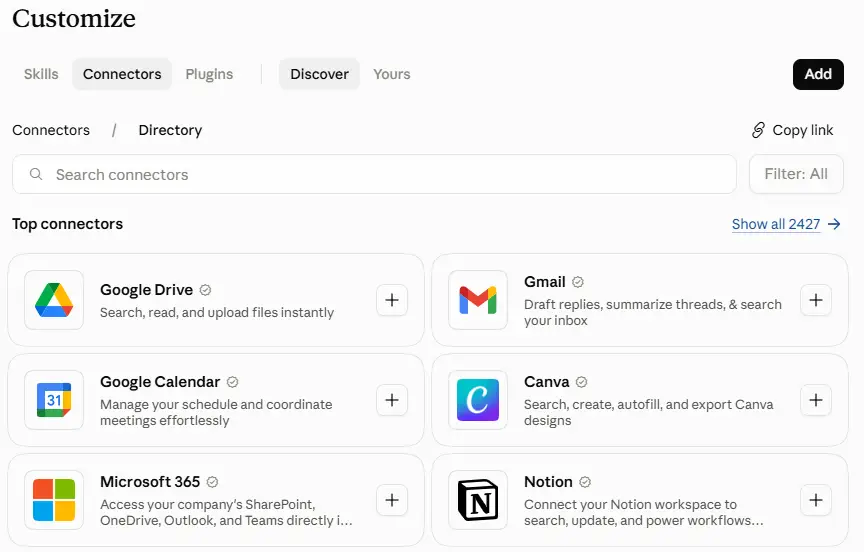
The Connectors Directory is a catalog where users can browse and add available connectors. It includes connectors from different sources and covers a range of applications and services.
Before connecting a service, users can review its description and capabilities. This is important because connectors do not all provide the same level of access. Some are designed mainly for retrieving information, while others can also perform actions such as creating or updating records.
The Connectors Directory is part of a broader area where Skills, Connectors, and Plugins can also be browsed. These features serve different purposes, so they should not be treated as interchangeable.
5. How to Connect an App to Claude
Connecting an app typically involves these steps:
- Open the Connectors section in Claude.
- Browse or search for the connector you want.
- Review its capabilities and requested permissions.
- Select the option to connect the service.
- Authenticate with your account for that service.
- Approve the requested permissions to complete the connection.
After connecting an app, you can manage or disconnect it through the relevant settings. The exact interface can vary depending on the platform, plan, or organization settings.
6. How to Use Connected Apps in Claude
After a connector is set up, it can be made available to the conversation you’re working in. You can then ask Claude questions or give it tasks involving the connected service.
Claude can recognize when a connected application is relevant to a request and use it when appropriate. For example, you might ask Claude to locate a project document, check information stored in a connected application, or perform an action supported by that service.
If a connector supports write actions, Claude may also be able to create or update information on your behalf. These capabilities vary between connectors.
7. Interactive Connectors
Interactive Connectors add a richer way to work with supported applications inside Claude. Instead of returning only text, some connectors can display interactive interfaces directly within a conversation.
For example, a connected service might display a dashboard, task board, or design interface that you can interact with without constantly switching to the original application.
This makes connectors more than a way to retrieve information. With supported interactive connectors, users can work with visual components and perform supported interactions directly within Claude.
Interactive functionality is available across supported Claude platforms, including web, desktop, and mobile experiences. However, not every connector supports interactive features, so capabilities should be checked for the individual connector.
8. Managing Multiple Connectors
As users connect more services, Claude may have access to a larger number of connector tools. Claude provides controls for managing how these tools are made available.
Tools can load automatically when relevant, while on-demand access allows tools to be loaded only when needed. On-demand access can be useful when several connectors are connected because it gives users more control over which tools are brought into a conversation.
It is also useful to review connected services periodically and disable or disconnect connectors that are no longer needed.
9. Custom Claude Connectors
Custom connectors allow users and organizations to connect Claude to services that are not available through the standard Connectors Directory. They can be useful for internal systems, specialized platforms, and business applications.
Custom connectors can use a remote server based on the Model Context Protocol (MCP), an open standard that allows AI applications to communicate with external tools and data sources.
In simple terms, MCP provides a structured way for Claude to interact with the tools made available by the remote server. Setting up a custom connector generally requires the appropriate server configuration and authentication details.
Because custom connectors may provide access to internal or sensitive systems, users and organizations should carefully review the permissions and capabilities before connecting them.
10. Remote Connectors vs Desktop Extensions
Claude supports different approaches depending on where the connected resource is located.
| Type | Best suited for |
|---|---|
| Remote Connectors | Cloud-based services accessed over the internet |
| Desktop Extensions | Local resources, files, and applications on a computer |
Remote connectors are generally appropriate when Claude needs to communicate with an online service. Desktop extensions are designed for workflows involving resources available locally on a computer.
The main difference is where the tool or data Claude needs to access is located.
11. Claude Connector Permissions and Security
Connectors use authentication to establish access to an external service. After authentication, permissions determine what Claude can access or do through that connection.
Some connectors are primarily read-only, allowing Claude to retrieve information without changing it. Others provide write capabilities that allow Claude to create or update information.
Before connecting a service, review the permissions it requests and understand what the connector is capable of accessing or changing. This is particularly important when using third-party or custom connectors.
You can disconnect a connector when you no longer want it available. Organizations may also have administrative controls that determine which connectors and connector tools members can use.
12. Recent Claude Connector Updates
Several developments have expanded what Claude Connectors can do:
- Interactive Connectors: More supported services can provide live, interactive interfaces inside Claude conversations.
- Mobile support: Interactive connector experiences are available on supported mobile Claude experiences in addition to web and desktop.
- Connected-app suggestions: Claude can suggest a relevant connected application when it fits a user’s request.
- Tool-access controls: Users can control how connector tools are made available, including automatic and on-demand access.
- Microsoft 365 capabilities: The Microsoft 365 connector supports additional actions, including certain email and file operations where the required permissions and organizational settings are enabled.
- Enterprise controls: Organizations have additional options for managing connector and connector-tool access.
These developments show how Claude Connectors are expanding from simple information retrieval toward richer interactions and supported actions.
13. Claude Connectors vs Claude Skills
Claude Connectors and Claude Skills serve different purposes.
Claude Connectors connect Claude to external apps, services, and data.
Claude Skills provide reusable instructions and workflows for specialized tasks.
A simple way to remember the difference is: Connectors provide access, while Skills provide workflows.
14. Benefits and Limitations of Claude Connectors
Claude Connectors offer several practical benefits:
- Access external information without repeatedly copying it into Claude.
- Work with applications you already use.
- Reduce the need to switch between multiple tools.
- Bring relevant external context into conversations.
- Perform supported actions through connected services.
However, there are limitations. Connector availability can vary by plan, platform, or organization. Capabilities also differ between individual connectors, and some may provide only read access. Permissions determine what Claude can access, while custom connectors may require additional technical setup. Organizations can also restrict connector availability for their members.
15. Conclusion
Claude Connectors allow Claude to work with the external applications, services, and data people already use. Standard connectors provide access to connected services, while individual connectors may support information retrieval, actions, or both. Interactive Connectors add richer interfaces inside conversations, and custom connectors can extend Claude to additional services.
The key idea is simple: Claude Connectors provide Claude with access to external tools and data, while the connector’s capabilities and granted permissions determine what Claude can actually do.