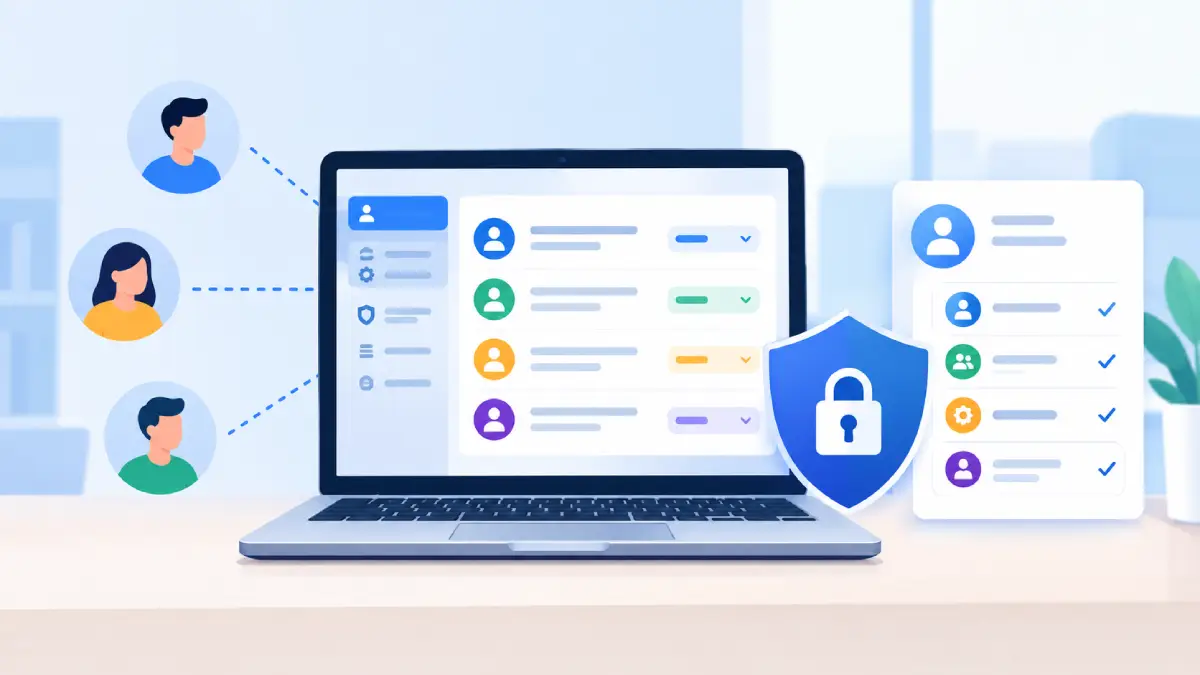
Managing a Google Ads account often involves multiple people, including business owners, marketing teams, and agencies. However, each person may require different permissions. Google Ads provides an Access and security section to manage users, Manager Account connections, security settings, and approvals for sensitive changes. Understanding these options helps you control who can access your account, manage permissions, and protect important account operations.
Go to Admin → Access and security to access the following sections:
- Summary — Review account access and related security information.
- Users — Manage individual users and their permissions.
- Managers — Review connected Manager Accounts.
- Security — Manage available account security controls.
- Multi-party approvals — Review approval requests for supported account changes.
1. Summary
The Summary section provides an overview of account access and related security information. It helps administrators review the account’s access-management setup and identify relevant settings.
2. Users
The Users section allows authorized administrators to manage people who have been invited to access a Google Ads account. Each user receives an access level based on their responsibilities.
2.1 How to Add a User
To invite a new user:
- Sign in to your Google Ads account.
- Click Admin.
- Select Access and security.
- Open Users.
- Choose the option to add or invite a user.
- Enter the person’s email address.
- Select the appropriate access level.
- Send the invitation.
The invited person must accept the invitation to obtain access. Their email address must be associated with a Google Account.
2.2 Adding an Email Address From Another Domain
You can invite users with business or custom-domain email addresses, such as person@company.com. The address must be associated with a Google Account. Google Ads also provides an Allowed domains setting that can restrict invitations to approved email domains. This setting controls which email addresses can be invited, rather than verifying the advertiser’s business identity.
2.3 Google Ads Account Access Levels
Google Ads provides different access levels to match users’ responsibilities.
- Email only: Allows users to receive account-related emails and notifications without campaign-management permissions.
- Billing: Provides access to permitted billing-related information and activities without general campaign-management permissions.
- Read only: Allows users to view campaigns, reports, performance data, and other permitted account information without editing campaigns.
- Standard: Allows users to manage campaigns and perform other permitted day-to-day advertising activities.
- Admin: Provides broad administrative permissions, including managing users and Manager Account connections.
Assign each person the lowest access level necessary for their responsibilities. Available permissions may vary by account configuration.
2.4 Managing Existing Users
From the Users section, authorized administrators can:
- Review users and their access levels.
- Change access levels when responsibilities change.
- Review pending invitations.
- Cancel invitations that are no longer needed.
- Remove access when it is no longer required.
Review user access regularly to ensure that permissions remain appropriate.
3. Managers
The Managers section allows authorized users to review Manager Account connections associated with a Google Ads account.
3.1 What Is a Google Ads Manager Account?
A Google Ads Manager Account, also known as an MCC, allows agencies and businesses to manage multiple Google Ads accounts from a central interface. A Manager Account can be linked to one or more Google Ads accounts, allowing management according to the permissions granted through the relationship.
3.2 Manager Access vs User Access
User access is granted directly to an individual’s Google Account, with a specific access level.
Manager access connects a Manager Account to a Google Ads account, allowing the connected account to manage it according to the established permissions.
These are separate access arrangements, so administrators should review both Users and Managers when checking account access.
3.3 Reviewing Manager Account Connections
The Managers section allows authorized administrators to review connected Manager Accounts and their relationships with the Google Ads account. If a connection is no longer required, it can be removed using the available account controls and permissions. Before removing it, confirm that the Manager Account is no longer needed for campaign management or reporting.
4. Security
The Security section contains available controls for protecting account access and restricting which email domains can be used for user invitations.
4.1 Verification During Sign-In
Google may require additional verification when users sign in to their Google Accounts. This can include 2-Step Verification, which adds another verification step beyond the password. Sign-in verification helps protect accounts against unauthorized access. It is separate from advertiser verification and payment verification.
4.2 Allowed Domains
Allowed domains restrict the email domains that can be used when inviting users to a Google Ads account. For example, an organization may allow only company.com addresses. Invitations using other domains may be restricted. This setting helps organizations control who can be invited, while the user’s access level determines what they can do after gaining access.
4.3 Protecting Account Access
Follow these practices to maintain secure Google Ads account access:
- Give each person individual access instead of sharing login credentials.
- Assign only the permissions required for each role.
- Limit Admin access to trusted administrators.
- Review users and pending invitations regularly.
- Remove unnecessary user access.
- Review Manager Account connections periodically.
- Maintain appropriate sign-in security protections.
- Review sensitive change requests before approving them.
5. Multi-Party Approvals
Multi-party approvals provide an additional review step for supported sensitive changes in Google Ads. Depending on the request type and account configuration, another eligible administrator may need to approve a change before it can proceed. The two main areas to review are User management requests and Account linking requests.
5.1 User Management Requests
User management requests relate to supported changes involving access to the Google Ads account, such as certain user-access or permission changes. When a change requires multi-party approval, another eligible administrator can review the request and approve or deny it. This provides additional oversight over sensitive account-access changes.
5.2 Account Linking Requests
Account linking requests relate to supported requests to establish or change connections between Google Ads accounts and other accounts, including relevant Manager Account relationships. An eligible administrator can review the request before the proposed linking action proceeds. Review the requesting account and the purpose of the connection before approving it.
5.3 How to Review Approval Requests
To review available requests:
- Sign in to your Google Ads account.
- Click Admin.
- Open Access and security.
- Select Multi-party approvals.
- Review the relevant user management or account linking request.
- Approve the request if it is authorized, or deny it if it should not proceed.
The available requests and controls depend on Google’s current implementation and the account’s eligibility.
5.4 Pending Requests
Requests may remain pending until an eligible administrator reviews them or they expire under the applicable rules. Review pending requests promptly to avoid delays in legitimate account-management activities. If a request is no longer required, check whether the available controls allow it to be revoked. A revoked, denied, or expired request does not complete the proposed change through that request.
5.5 Benefits of Multi-Party Approvals
Multi-party approvals help provide:
- Additional oversight — Sensitive changes receive another review.
- Better access control — Unexpected access changes can be identified before approval.
- Improved accountability — Administrators can assess who initiated a request.
- Reduced risk — Important changes are less dependent on a single administrator.
6. Conclusion
Google Ads Access and Security helps administrators manage users, control permissions, review Manager Account connections, and protect sensitive account operations. By understanding the Summary, Users, Managers, Security, and Multi-party approvals sections, you can ensure that the right people have appropriate access and that important changes receive proper review. Regularly reviewing permissions, maintaining secure sign-in practices, and checking user management and account linking requests helps maintain better control over your Google Ads account and reduces the risk of unauthorized access.