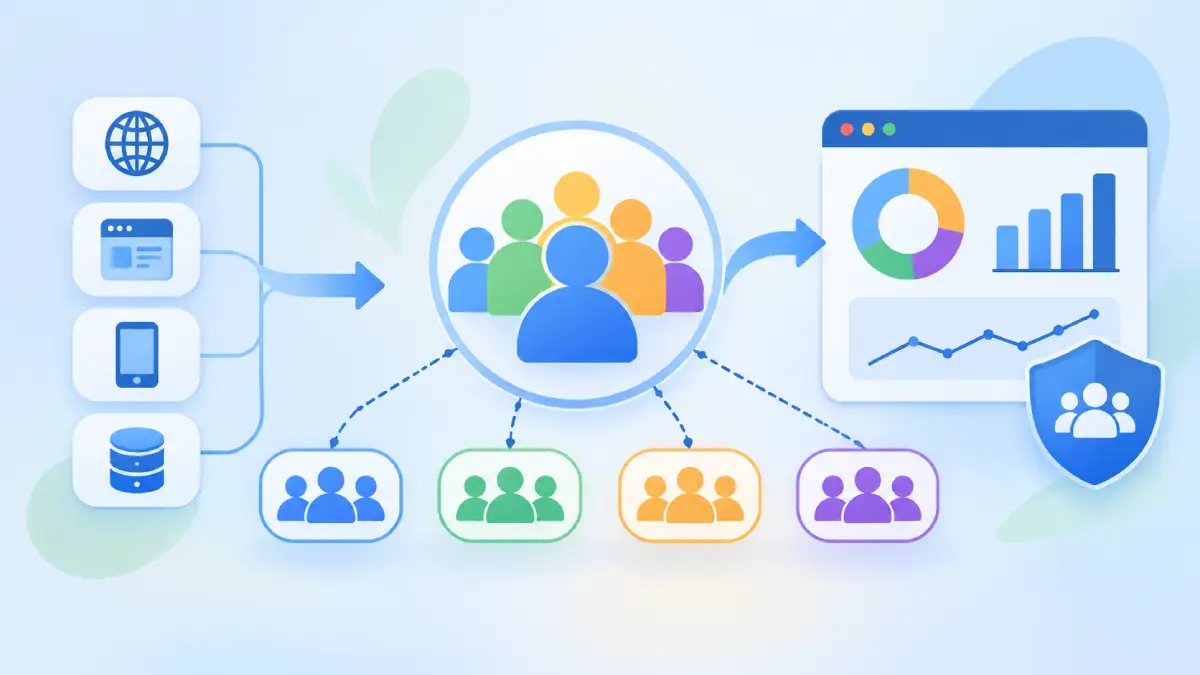
Reaching the right people with Google Ads requires more than selecting audiences during campaign setup. Advertisers also need to organize customer data, manage audience segments, understand audience characteristics, and ensure that the available data remains useful across campaigns. Google Ads provides Audience Manager to handle these activities through dedicated sections for first-party data, saved audiences, custom segments, combined segments, and audience insights. Understanding how these sections work together makes it easier to maintain audience resources, identify potential targeting opportunities, and manage audience data more effectively.
1. Understanding Google Ads Audience Manager
Google Ads Audience Manager is the central workspace for reviewing, creating, and managing audience resources within an account. It separates audience management from campaign setup, allowing advertisers to create reusable audience resources and apply them across supported campaigns.
Its main audience-related sections include:
- Your Data Segments
- Audiences
- Custom Segments
- Combined Segments
- Your Data Insights
Audience Manager also includes account-level Settings. Campaign-level audience selection and performance reporting are available separately under campaign settings and the Campaigns section.
2. Accessing Google Ads Audience Manager
Open Audience Manager from the Tools menu in your Google Ads account, under the shared library area. The exact menu position may vary depending on the account interface. You can also use the navigation search to locate it. The workspace provides separate sections for viewing and managing audience resources. Each section includes relevant tables, search options, filters, and editing controls.
3. Your Data Segments
Your Data Segments contains audiences created from first-party data, including website visitors, app users, YouTube users, and customer lists. This section helps advertisers review and maintain existing data segments.
3.1 Segment Names and Types
Each row displays the segment name and type, helping identify whether the data comes from website activity, app activity, YouTube interactions, or uploaded customer information. Segments imported from Google Analytics generally need to be edited in their original source, while eligible segments created directly in Google Ads can be managed within the account.
3.2 Membership and Usage Status
Membership status indicates whether a segment is actively collecting members or has stopped adding new ones. Usage information shows whether the segment is applied to campaigns or ad groups. A segment that has not been used in campaign or ad group targeting for 540 days can automatically become Closed. It stops collecting new members but remains available in the account and can be reopened.
3.3 Audience Size Information
Audience size figures show the available reach of a segment across supported advertising networks. Eligibility requirements differ between Search, Display, and YouTube. Therefore, a segment may contain members but still be too small to use on a particular network.
3.4 Searching, Sorting, and Filtering
Use the available table controls to manage large segment lists:
- Search by segment name to locate a specific list.
- Sort by size or status to identify segments requiring attention.
- Filter by segment type or label to organize results.
3.5 Labels and Ongoing Management
Labels help organize segments according to their purpose, such as Cart Abandoners, Past Purchasers, or Newsletter Subscribers. Depending on the segment type, you can edit segment details, change membership duration, open or close membership, and remove outdated segments. Changing membership duration on an eligible Search segment applies the updated duration to existing and new visitors.
4. Audiences
The Audiences section contains saved audience resources that can combine existing segments, demographic settings, and exclusions. These resources can be applied to supported campaigns and ad groups.
4.1 Organization and Viewing
You can browse saved audiences, review their included segments, and check where they are being used. Descriptive names help distinguish audiences that use similar underlying segments. For example, Spring Sale Prospects and Returning Customers can be maintained as separate audience resources.
4.2 Managing Versus Selecting
Managing an audience means creating or editing the saved resource in Audience Manager. Selecting an audience means applying that resource through campaign or ad group settings. Depending on the campaign type, audiences may be applied using Targeting or Observation. For example, an audience named Spring Sale Prospects can be created once and reused across multiple supported ad groups without rebuilding its underlying segments.
5. Custom Segments
Custom Segments allow advertisers to define audiences based on interests, purchase intentions, and online behavior signals.
5.1 Accessing and Naming
Open the Custom Segments section to view existing segments. Select the plus button to create a new segment and give it a descriptive name, such as Running Shoe Researchers.
5.2 Supported Signals
Depending on campaign compatibility, custom segments can use signals such as:
- Interests and purchase intentions described in your own words.
- Keywords related to what people search for.
- URLs and websites visited by potential customers.
- Apps used by your intended audience.
- Relevant search-related signals where supported.
5.3 Editing and Availability
Existing custom segments can be renamed, edited, or removed from the section. Their availability depends on the campaign type and advertising network. Check campaign compatibility before relying on a custom segment for audience selection.
5.4 Custom Segments and Performance Max Audience Signals
In Performance Max, custom segments can be included as audience signals. These signals provide information about the types of people likely to be interested in your products or services. They help Google’s systems understand potential customer characteristics but do not restrict ads exclusively to those audience members.
6. Combined Segments
Combined Segments allow advertisers to combine existing audience segments using logical conditions. They create more specific audience definitions without requiring new underlying data.
6.1 Purpose
Combined Segments help identify people who meet multiple conditions or exclude specific groups. For example, an advertiser can combine website visitors with an existing customer list while excluding previous purchasers.
6.2 Combination Logic
Combined Segments use three main logical conditions:
- Include (OR): Includes people who belong to any selected segment, expanding audience reach.
- Narrow (AND): Requires people to belong to an additional segment, making the audience more specific.
- Exclude (NOT): Removes people who belong to a selected segment.
6.3 Creating and Managing
Select the plus button, enter a name, add the required conditions, and save the combined segment. Existing combined segments appear in the same section, where eligible resources can be opened, edited, or removed. Check where a segment is being used before modifying it, as changes can affect multiple campaigns.
6.4 Audience Size and Practical Example
Each additional AND condition can reduce audience size. Combined Segments with 1,000 or fewer members are subject to serving restrictions. For example, a retailer can include Website Visitors (Last 30 Days) and Newsletter Subscribers using OR, then exclude Past Purchasers using NOT. This creates an audience of potential customers who have visited the website or subscribed to the newsletter but have not purchased yet. Adding further conditions may narrow the audience too much, so review its available size before using it.
7. Your Data Insights
Your Data Insights helps advertisers understand the characteristics of people within their existing first-party audience segments. It is an analysis area rather than a segment creation or management section.
7.1 Available Insights
Insights generally provide two types of information:
1. Audience Distribution
Shows characteristics of segment members, including:
- Age and gender.
- Household income, where available.
- Geographic locations.
- Device usage.
2. Relevant Audiences
Highlights interests, affinity categories, and in-market categories that are overrepresented among segment members compared with a broader benchmark.
These insights help identify common characteristics and potential customer interests.
7.2 Using the Insights
Advertisers can use these findings to understand their existing audiences and identify additional targeting opportunities. For example, if an in-market category appears frequently among customers, it may indicate an opportunity to test related audience segments in supported campaigns.
7.3 Eligibility and Data Volume
Insights are available only when segments meet Google’s eligibility and data-volume requirements. Website and app visitor segments and Customer Match segments are supported, while mobile device ID-based segments are not supported. Insufficient audience data is a common reason for limited or unavailable insights.
8. Managing Audience Data Sources Through Data Manager
Data Manager handles data source connections and integrations, while Audience Manager manages the audience resources created from that data.
8.1 Role of Each Tool
- Data Manager: Connects and manages first-party data sources and supported integrations.
- Audience Manager: Manages data segments, saved audiences, custom segments, combined segments, and audience insights.
This separation distinguishes how data enters Google Ads from how advertisers organize and use audience resources.
8.2 Accessing Data Manager
Open the Tools menu and select Data Manager. The available options may vary depending on the account interface and connected products.
8.3 Sources You Can Manage
Data Manager supports different data connections and integrations, including:
- Google tag for website activity.
- Google Analytics 4 for linked analytics data.
- Customer data through supported Customer Match connections.
- Supported app-related integrations.
- Other available first-party data integrations.
8.4 Connection Status and Privacy
Data Manager displays connected products and integration information, helping advertisers identify disconnected or inactive sources. Consent settings and data privacy controls are also important when sharing first-party data. Ensure that customer information is collected and used with appropriate consent and in accordance with applicable privacy requirements. Detailed implementation of tags, GA4, and Customer Match is outside the scope of audience management.
9. Audience Manager vs Campaigns Audiences
Audience Manager and the Audiences area under Campaigns serve related but different purposes.
9.1 Audience Manager for Centralized Management
Use Audience Manager to create, organize, edit, combine, and review audience resources. It provides a central workspace for managing reusable audience data.
9.2 Campaigns Audiences for Campaign-Level Management and Reporting
The Audiences area under Campaigns provides campaign and ad group-level audience information. It allows advertisers to review audience performance, examine demographic reporting, manage audience selections, and review exclusions applied at the campaign level.
9.3 Which to Use
Use Audience Manager when you need to manage the underlying audience resource. Use Campaigns Audiences when you need to apply or manage audiences within campaigns or analyze their performance.
10. Best Practices for Audience Data and Segment Management
- Use descriptive segment names that clearly communicate their purpose and membership duration.
- Organize related segments using labels.
- Review membership and usage status regularly.
- Avoid creating duplicate segments that make audience management difficult.
- Monitor audience size and eligibility before applying segments to campaigns.
- Review connected data sources in Data Manager periodically.
- Check where segments are being used before editing or removing them.
- Maintain appropriate consent and privacy practices for first-party data.
- Review Your Data Insights periodically to identify potential audience opportunities.
Conclusion
Effective audience management helps advertisers make better use of their first-party data and build more relevant audience resources. By understanding the different sections of Google Ads Audience Manager, maintaining data connections through Data Manager, and regularly reviewing segment status and insights, advertisers can keep their audience data organized and ready for use across supported campaigns.