

Completing the initial Google Analytics 4 setup is only the first step in building a reliable analytics implementation. Once the property and basic tracking are configured, several important areas still need to be reviewed and understood before relying on the data for reporting. This includes data collection, events and parameters, key events, internal traffic, campaign tracking, custom definitions, data retention, privacy controls, integrations, access management, and measurement planning. Reviewing these areas after setup helps establish a stronger foundation for accurate and meaningful GA4 analysis.
1. Review GA4 Property and Business Details Settings
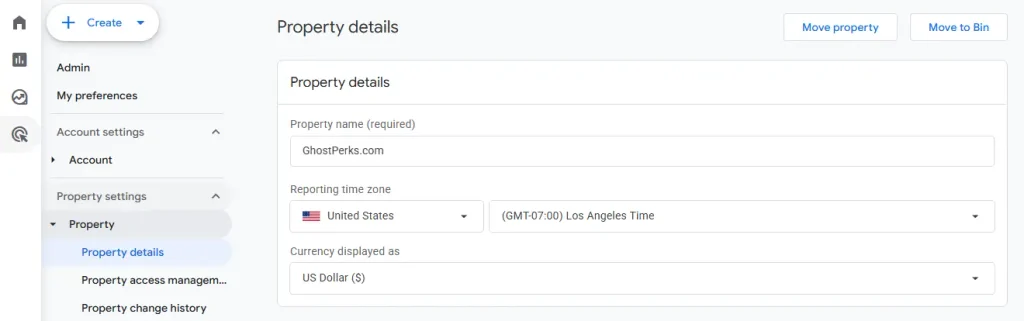
Every Google Analytics 4 implementation begins with a property, which acts as the container for data collected from a website or app. After setting up GA4, review the property details and business settings to confirm that they accurately represent the intended website, app, or business. This includes the property name, reporting time zone, currency, industry, business size, and business objectives. These settings provide important context for how the property is configured and how its data is interpreted and reported.
Currency settings determine how monetary values such as revenue, purchase value, and other financial data are represented in GA4. Review the reporting currency to ensure that it matches the business’s reporting requirements. For ecommerce tracking, also verify that purchase and other monetary events send the appropriate currency parameter when required.
How to Do It
- Go to Google Analytics → Admin
- Open the Property settings section → Property details
- Check the property details confirm that it represents the intended website, app, or business.
2. Review the Web Data Stream
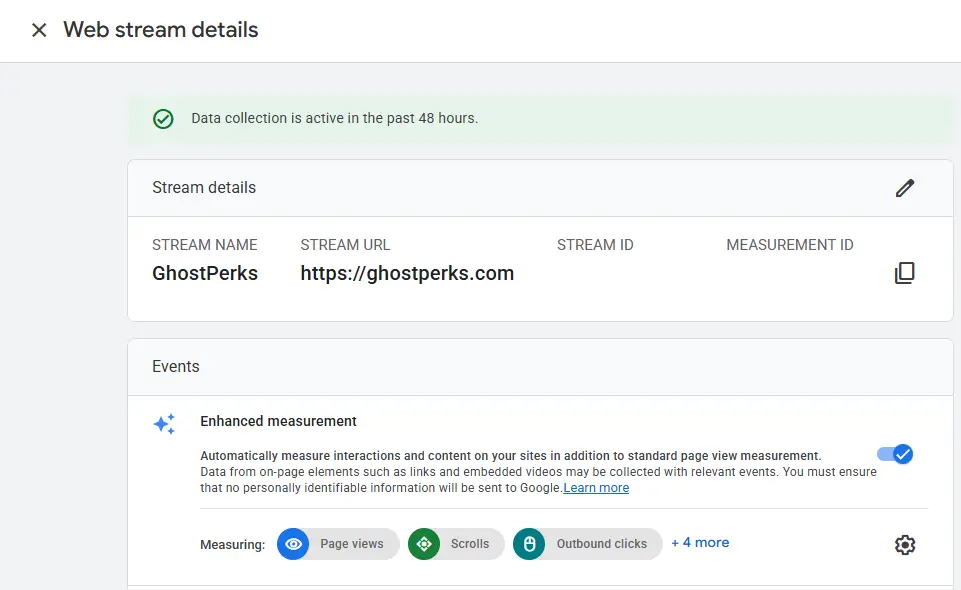
A web data stream represents the flow of data from a website into a GA4 property. It is associated with the website’s URL and has a unique Measurement ID that identifies the stream. Review the web data stream to confirm that it represents the intended website and that its configuration is appropriate for the required measurement. Enhanced Measurement is also configured at the web data stream level and can automatically collect certain interactions, such as page views, scrolls, outbound clicks, site search, and other supported interactions. Reviewing the data stream helps establish a clear understanding of what website data is being collected and where it belongs within the GA4 property.
How to Do It
- Go to Google Analytics → Admin
- Go to Data collection and modification → Data streams
- Select the relevant Web data stream
- Verify the website URL and stream name
- Review the Measurement ID shown for the stream
- Review the Enhanced Measurement settings and the interactions currently enabled for automatic collection
- Confirm that the data stream represents the intended website and that its configuration matches the property’s measurement requirements
Tip: Enhanced Measurement is configured at the web data stream level and can automatically collect supported interactions such as page views, scrolls, outbound clicks, and site search. Review these settings to understand which interactions are being collected automatically.
3. Review Data Collection
GA4 uses the Google tag and related measurement technologies to collect website data and send it to the appropriate property and data stream. Depending on the implementation, GA4 can collect information such as page views, user interactions, and other events. Review the data collection setup to confirm that the website is sending data to the intended GA4 property and data stream and that the expected data is being received by Analytics. Understanding how this collection works is important because reports are ultimately based on the data received by Analytics. Data collection should therefore be viewed as the foundation of the entire measurement structure rather than simply treating the tracking implementation as a background process.
How to Do It
- Go to Google Analytics → Admin
- Under Data collection and modification, select Data streams
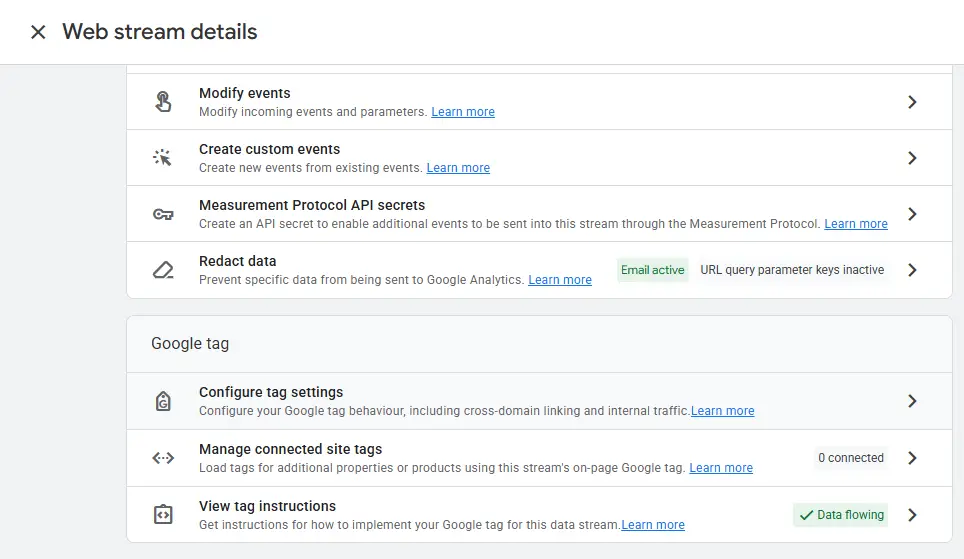
- Select the relevant Web data stream and review its Google tag configuration
- If the implementation uses Google Tag Manager or another supported setup, review the implementation to confirm that the Google tag is configured correctly
- Go to Reports and review recent data, such as users, events, and page views, to confirm that data is being received.
4. Review Data Retention
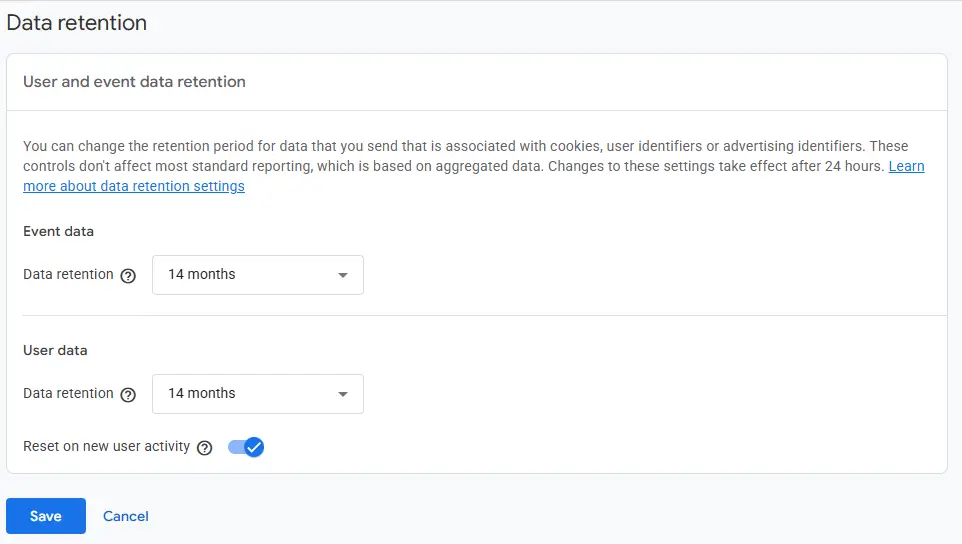
Data retention determines how long certain user-level and event-level data remains available for detailed analysis, including analysis performed through Explorations. This setting is different from the historical data available in GA4’s standard aggregated reports. Changing the retention period does not mean that standard reports simply lose all historical information after the selected period. Review the retention period and the Reset user data on new activity option to ensure they match your data analysis and retention requirements. The reset option applies to user-level data and can extend the retention period for a user identifier when that user generates new activity. Understanding this distinction is important when considering detailed analysis that depends on user-level or event-level data.
How to do it:
- Go to Google Analytics → Admin.
- Open Property Settings → Data Collection and Modification → Data retention
Event Data vs User Data
Event data records what a user does on a website or app. Each interaction is recorded as an event.
Example:
A user views a product page, adds the product to the cart, and completes a purchase. These actions generate events such as page_view, add_to_cart, and purchase.
User data relates to the user and helps describe their activity over time.
Example:
The same user may be identified as a returning user who visited the website several times and eventually made a purchase.
“Reset on new user activity” means the data retention period starts again when the same user becomes active again.
5. Configure Internal Traffic
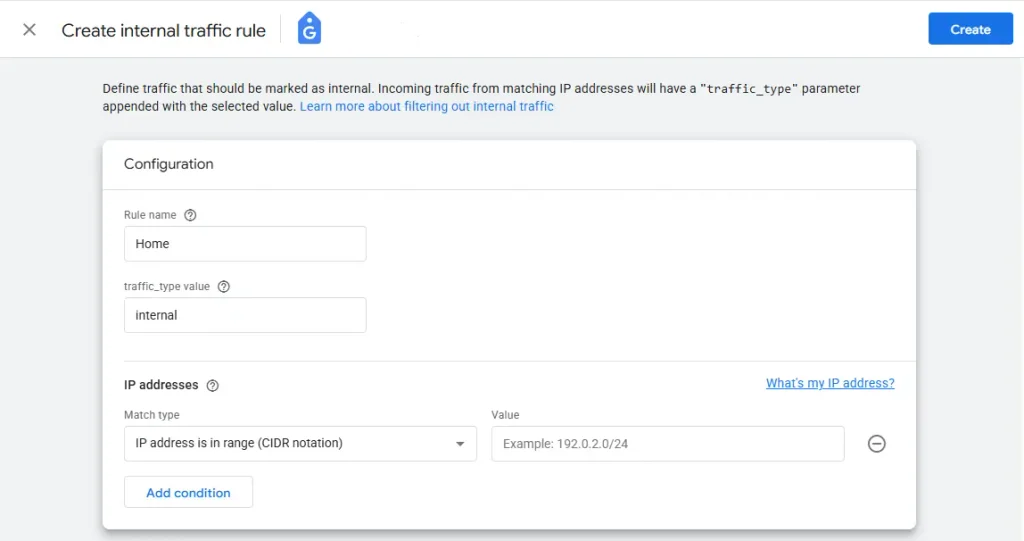
Internal traffic can come from employees, developers, agencies, or other people who regularly access a website for business or development purposes. This activity may not represent genuine customer behavior and can affect Analytics reporting. GA4 provides internal-traffic rules that can identify traffic as internal. These rules can use conditions such as IP addresses to determine which traffic should receive the internal designation. Review the rules used to recognize internal traffic and decide whether the identified activity should be excluded from GA4 reports. Identifying internal traffic and filtering it from reporting are separate concepts, so understanding this distinction is important when deciding how internal activity should be handled.
How to do it:
- Go to Google Analytics → Admin.
- Open Property Settings → Data collection and modification → Data streams
- Select your Website Data Steam
- Under Wet stream details, go to Google Tag → Configure tag settings
- Under Google tag, click show more and select Define internal traffic → Create
- Enter Rule name of you choice and select IP addresses and enter value (IP Address), Click on Create
- Test the filter: Open your website from the defined internal IP address and check Realtime reports to confirm that the traffic is identified as internal.
- Once you confirm the filter is working correctly, go to Property Settings → Data collection and modification → Data filters
- Set Current state to Active
6. Connect Relevant Google Services
Review the Google services that can be connected to the GA4 property and determine which integrations are relevant to the website’s measurement requirements. Connecting relevant services can bring data and functionality from different Google platforms into a more connected measurement structure.
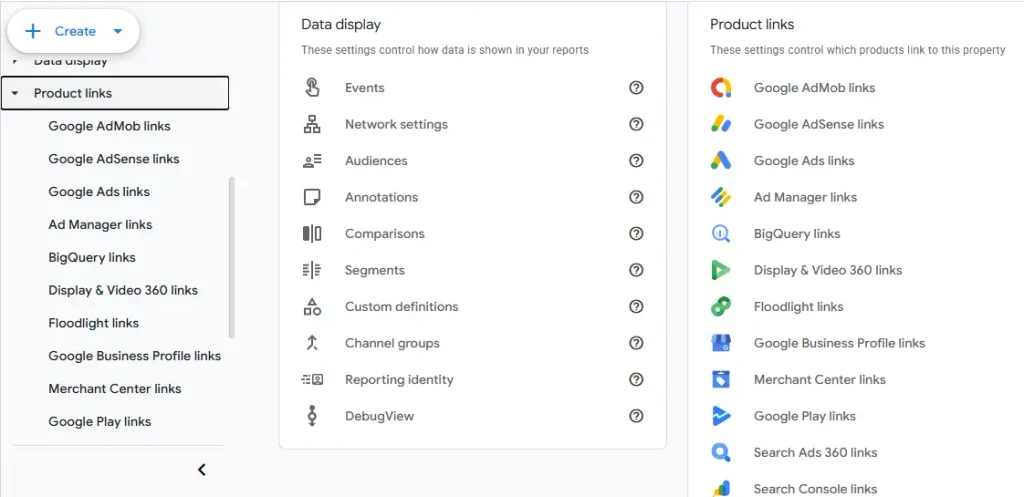
Available integrations may include services such as Google Search Console, Google Ads, Google Merchant Center, and BigQuery, depending on the website, advertising setup, ecommerce requirements, or analysis needs. Each Google service has its own purpose, so integrations should be reviewed based on the website’s measurement requirements rather than connected unnecessarily. Connecting services should be viewed as an integration between different platforms, not as a replacement for any individual platform.
How to Do It
- Go to Google Analytics → Admin.
- Select Property settings section → Product Links
- Confirm that the connected services use the intended Google accounts, properties, or advertising accounts.
7. Review User Access and Permissions
GA4 access should reflect the responsibilities of each person working with the property. Different roles and permissions determine what users can view, configure, or manage within Analytics. Review the users who have access and confirm that their roles match their responsibilities. Administrative access should be limited to people who genuinely need the ability to manage important property settings, while other users can be assigned permissions appropriate to their reporting, analysis, or configuration responsibilities. Reviewing access after setup also helps identify users who no longer require access and ensures that the Analytics property remains under appropriate administrative control.
How to Do It
- Go to Google Analytics → Admin
- Property settings section → Property access management
- Review the users and groups that currently have access to the property
- Check the role or permission level assigned to each user
- Confirm that administrative access is limited to users who need it
- Review users who no longer work with the property or no longer require their existing level of access
- Remove unnecessary access or adjust permissions where appropriate
- Review access periodically as team members, agencies, and responsibilities change
8. Review Unwanted Referrals
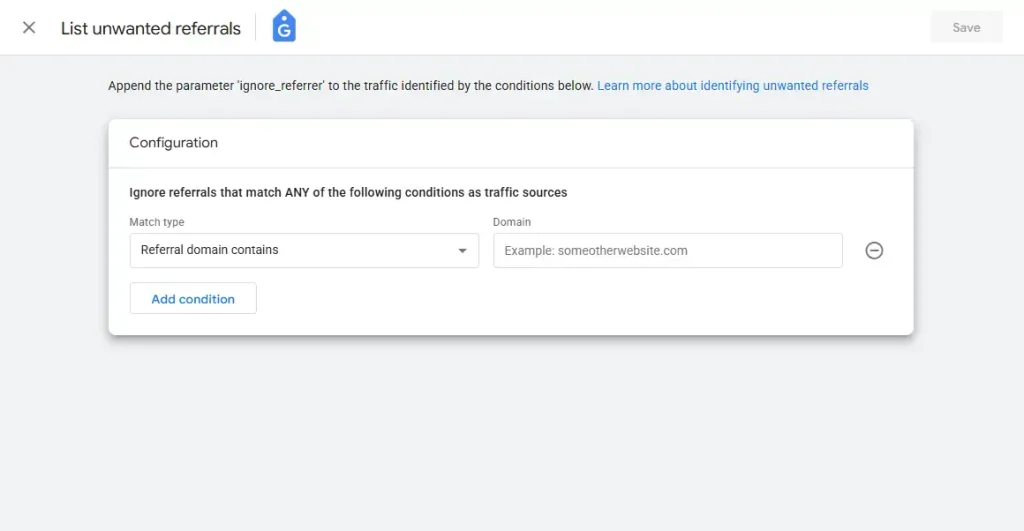
Referral traffic identifies visits that arrive through links from other websites. In some situations, third-party services can appear as referral sources even though they are part of an existing customer journey. Payment providers are a common example. A customer may temporarily leave a website to complete a payment and then return to the original website. Without appropriate referral handling, that return can affect how acquisition information is interpreted. Review referral sources regularly and identify third-party domains that are part of the normal customer journey, such as payment gateways, authentication services, booking platforms, or other external services. Add relevant domains to the unwanted referrals list when they should not be treated as new referral sources.
How to do it:
- Go to Google Analytics → Admin.
- Open Property Settings → Data Collection and Modification → Data steams
- Select your website, Web stream details → Configure tag settings → show more
- Google Tag → List unwanted referrals
- Enter Match type and Domain, and save
9. Customize the Reports
After setting up Google Analytics 4, review the standard reports and customize the reporting structure to make important information easier to access. Organize relevant reports around the website’s measurement objectives, such as acquisition, engagement, key events, or ecommerce, and remove unnecessary reports from the navigation. This only changes how information is organized and presented in GA4; it does not change the underlying data collection.
How to Do It
- Sign in to Google Analytics and open the relevant GA4 property.
- Go to Reports and review the existing reporting structure.
- Identify the reports and collections that are most relevant to the website’s measurement requirements.
- Review the available report customization options based on your access level.
- Add relevant reports or collections when additional reporting views are needed.
- Remove or hide unnecessary reports from the navigation where appropriate.
- Review individual reports and confirm that the dimensions, metrics, and visualizations provide useful information.
- Keep the reporting structure aligned with the property’s business objectives and measurement framework.
10. Define Key Events
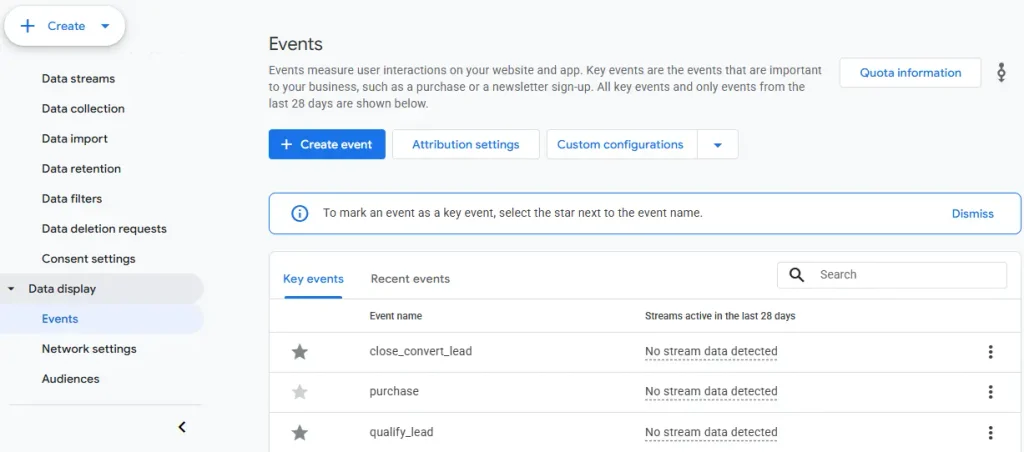
Key events represent important actions that have meaningful value to a business, such as purchases, completed registrations, or submitted forms. Review which events are marked as key events and confirm that they represent meaningful business outcomes. Not every event should be treated as a key event, as routine interactions may provide useful behavioral information without representing an important outcome. Keeping a clear distinction between regular events and key events helps GA4 measurement remain focused on actions that matter most to the business.
How to Do It
- Sign in to Google Analytics and open the relevant GA4 property.
- Go to Admin → Property section → Data Collection and Modification → Data display → Events
- Review the events currently marked as key events.
- Identify the business outcomes that each key event represents.
- Check whether routine interactions have been unnecessarily marked as key events.
- Confirm that important outcomes, such as purchases, registrations, or form submissions, are represented appropriately when they are being measured.
- Keep regular events and key events clearly distinguished so that reports can focus on meaningful business outcomes.
11. Review Events and Parameters
Events are the primary way GA4 represents user interactions and other activities. Some events are collected automatically, while recommended and custom events can be used to measure specific interactions. Parameters provide additional information about an event, such as the content involved, value, or other characteristics relevant to analysis. Review the events being collected and the parameters associated with important events to confirm that the existing measurement structure is consistent and appropriate before introducing additional tracking requirements.
How to Do It
- Sign in to Google Analytics and open the relevant GA4 property.
- Go to Reports → Engagement → Events to review the events currently appearing in reports.
- Review the event names and identify the types of interactions they represent.
- Go to Admin → Data collection and modification → Events to review the event configuration available for the property.
- Identify automatically collected, recommended, and custom events where applicable.
- Review the parameters associated with important events and understand what additional information they provide.
- Check whether the existing event structure provides the information required for the intended analysis.
- Document any additional measurement requirements separately rather than creating duplicate or inconsistent events unnecessarily.
12. Establish UTM Campaign Tracking
UTM parameters provide additional information about campaign traffic arriving at a website, with common parameters including source, medium, and campaign. Review the UTM parameters used for campaign traffic and establish consistent naming conventions for sources, mediums, and campaigns. For example, use a consistent format such as facebook, instagram, or google for the source instead of mixing variations such as Facebook, FB, and facebook.com. Avoid inconsistent capitalization, abbreviations, spelling, or naming conventions, as these can cause similar campaigns or traffic sources to appear as separate values in GA4 reports. Consistent campaign tagging provides a clearer structure for analyzing traffic from marketing campaigns and other external sources.
How to Do It
- Review the UTM parameters used in links that direct traffic to the website.
- Check the naming conventions used for utm_source, utm_medium, and utm_campaign.
- Look for inconsistent capitalization, abbreviations, spacing, or alternative names for the same source or campaign.
- Establish consistent naming conventions for future campaign URLs.
- Ensure that different teams, agencies, or marketing platforms follow the same conventions when creating campaign links.
- Review campaign-related dimensions in GA4 reports to identify inconsistent values that may already exist.
- Document the agreed UTM naming conventions so they can be applied consistently across future campaigns.
13. Review Custom Dimensions and Metrics
Custom dimensions and custom metrics allow organizations to analyze information that is not available through GA4’s predefined reporting fields. A custom dimension represents an additional descriptive attribute, while a custom metric represents a numerical measurement. Review reporting requirements first, use predefined dimensions and metrics where they meet the requirement, and create custom definitions only when additional information is genuinely needed. This keeps the Analytics configuration simpler and focused on meaningful reporting needs.
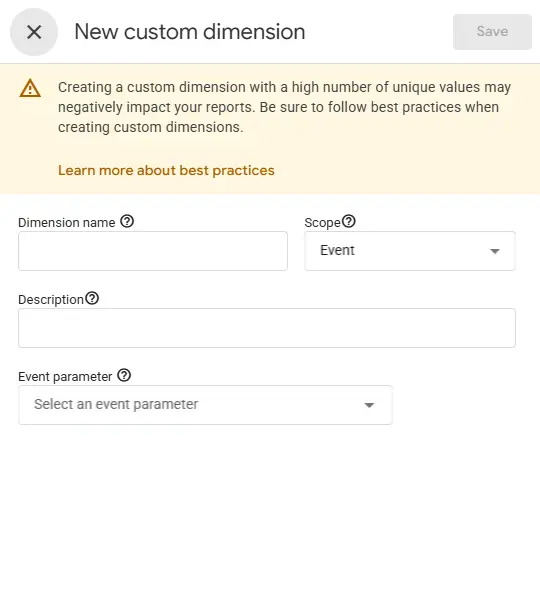
How to do it:
- Go to Google Analytics → Admin
- Open Property Settings → Data Display → Custom Definitions
- Custom definitions → Create custom dimensions
- Enter required details and save
14. Understand GA4 Configuration Limits
GA4 properties have limits on certain configuration elements, including custom dimensions and custom metrics. These limits apply to different types of custom definitions, including user-scoped, event-scoped, and item-scoped dimensions and metrics. Review the custom definitions currently configured for the property and understand the applicable limits. Use custom definitions selectively for information with genuine analytical value, and rely on GA4’s standard dimensions and metrics when they meet the reporting requirement. Understanding these limits early helps avoid unnecessary configuration and supports future measurement planning.
How to Do It
- Go to Google Analytics → Admin
- Open Property Settings → Data Display → Custom Definitions
- Review the existing custom dimensions and custom metrics.
- Identify whether the definitions are user-scoped, event-scoped, or item-scoped where applicable.
- Compare the current configuration with the applicable limits for the property type.
- Identify custom definitions that duplicate information already available through GA4’s standard dimensions or metrics.
- Prioritize custom definitions that provide information with genuine analytical value.
- Keep the applicable GA4 limits in mind when planning future custom dimensions and custom metrics.
15. Review Privacy and Data Controls
Privacy and data controls are an important part of a GA4 implementation. Settings related to Google Signals, consent, advertising features, data retention, and data filters can affect how information is collected, processed, and used. Review these controls and understand both their purpose and the appropriate approach for the website’s measurement and privacy requirements.
- Privacy controls — Settings that help determine how Analytics data is collected, processed, retained, and used. Review these settings according to the website’s privacy requirements and measurement needs.
- Data controls — GA4 settings that control aspects of data collection, retention, filtering, and sharing. Configure them according to the type of data being collected and the organization’s requirements.
- Google Signals — A Google Analytics feature that uses eligible signed-in Google user information to support features such as cross-device reporting and advertising-related measurement. Enable it when the required consent is in place and the related Analytics features are needed; otherwise, keep it disabled.
- Consent — A user’s choice about whether certain data collection or processing activities are permitted. Ensure Analytics and Google tags respect the consent choices provided by users.
- Consent Mode — A Google framework that adjusts Google tag behavior based on users’ consent choices. Implement it when the website uses a consent mechanism and Google tags need to respond to those choices.
- Advertising features — Analytics features that support advertising-related measurement, audiences, and related functionality. Use them when advertising measurement is required and the applicable consent and privacy requirements are met.
- Data retention — The period for which GA4 retains user-level and event-level data for certain reporting and analysis features. Select a retention period that matches the organization’s analytical requirements and applicable policies.
- Data filters — Settings that determine whether certain incoming data, such as internal traffic, is included in GA4 reporting. Configure appropriate filters when specific traffic should be excluded from reporting.
16. Establish a Measurement Framework
Analytics becomes more useful when measurement is connected to clearly defined business objectives. Review the primary objectives of the website or app, identify the user actions and outcomes that indicate progress toward those objectives, and confirm that they are appropriately represented by GA4 events and key events. Check whether existing events provide the information needed for analysis and identify genuine measurement gaps where additional events are required. Avoid tracking interactions simply to collect more data; instead, maintain a focused measurement framework that clearly connects business objectives, user activities, events, and key events.
17. Document the GA4 Configuration
Important GA4 configuration decisions should be documented so that the property remains understandable and maintainable over time. Create a central document or knowledge base and record the property and data stream information, events and parameters, key events, internal-traffic settings, custom dimensions and metrics, connected Google services, and important measurement decisions. Include the purpose behind significant decisions where useful, and update the documentation whenever major configuration changes are made. Keeping this information accessible to relevant team members reduces reliance on individual memory and provides a useful reference when the website, team, or Analytics configuration changes.
18. Plan Ongoing GA4 Review
A GA4 implementation should not be considered permanently finished after the initial setup. Changes to the website, tags, marketing campaigns, consent systems, ecommerce platforms, domains, and connected services can affect how data is collected and interpreted. Establish a regular review process and reassess the GA4 measurement structure when important changes occur. Review new website features, tracking changes, marketing campaigns and campaign tagging, consent and privacy changes, domains, ecommerce functionality, connected services, and new business objectives. When relevant, review events, key events, custom definitions, and integrations, and update the GA4 documentation after significant configuration changes. The goal is not to repeatedly rebuild GA4, but to keep the measurement structure aligned with the evolving website and business.
Conclusion
Installing Google Analytics 4 provides the foundation for website measurement, but several important areas should be considered afterward. Data collection, events, key events, internal traffic, referral handling, campaign tracking, custom definitions, data retention, privacy controls, integrations, access management, and measurement planning all contribute to the quality of the overall implementation. A structured approach to these post-setup areas creates a clearer foundation for reliable reporting and deeper analysis in Google Analytics 4.